Update User Profile
The User Profile section allows users to review, edit, and update their personal information after logging into the Docket Management System.
This feature ensures that all user contact and account details remain accurate and up to date.
1. Access Profile
Once logged in, navigate to the left-hand side menu and select Profile.
This opens your profile details page.
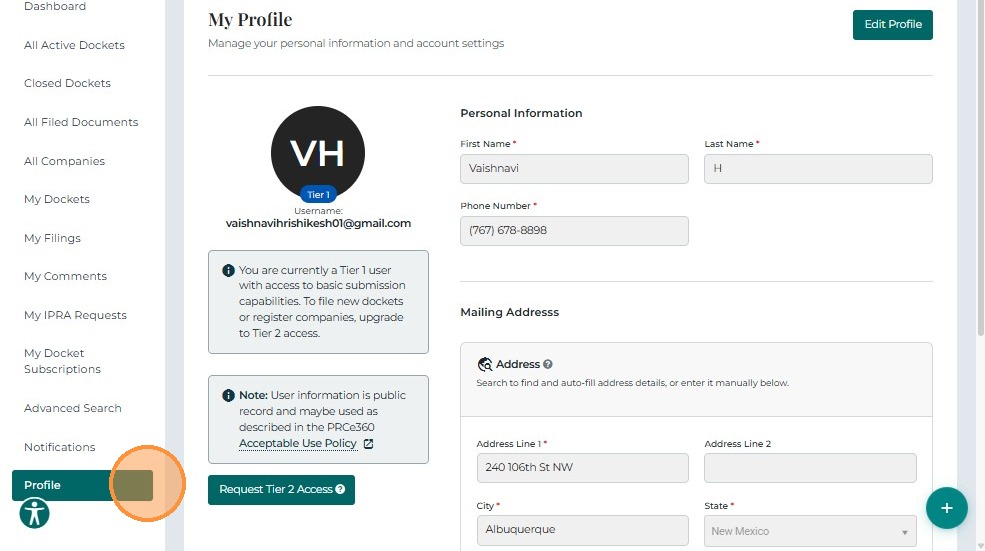
Tier 1 User View:
Tier 1 users can view their profile details and will also see a Request a Tier 2 Account button, which allows them to request elevated access for company registration and filings.
Tier 2 User View:
Tier 2 users can view and edit their profile information. Their profile includes an Edit button for updating user details.
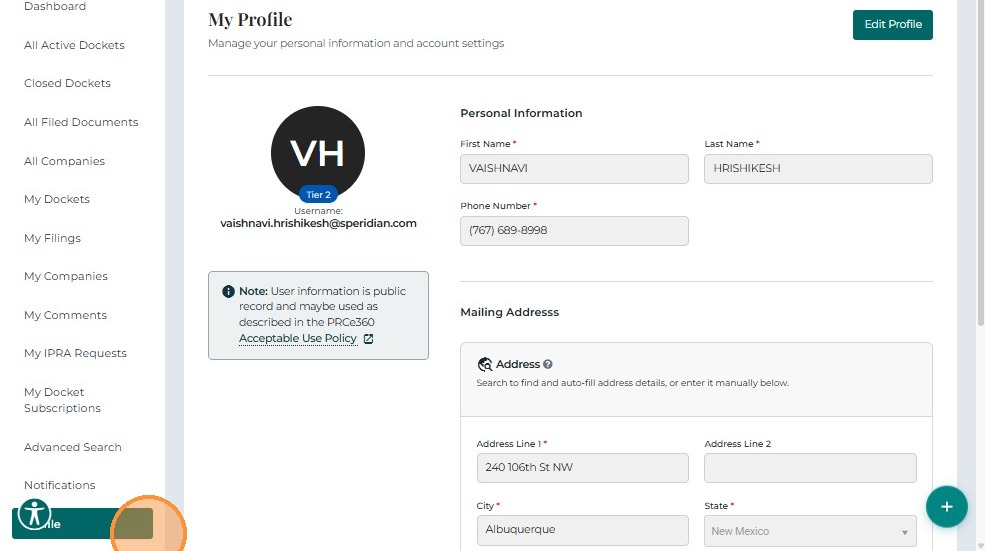
Note:
The profile editing process is identical for both Tier 1 and Tier 2 users.
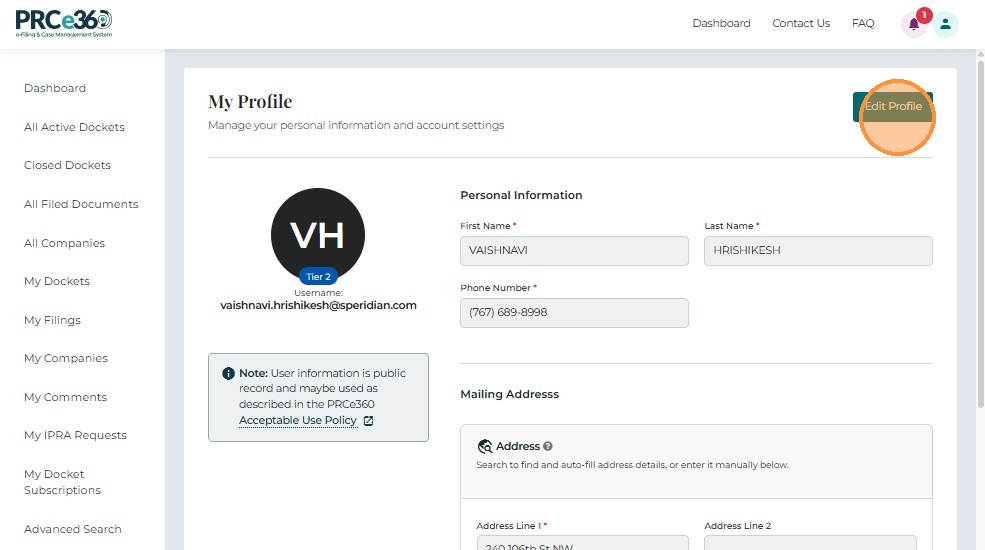
2. Click the Edit Button
On the Profile page, click the Edit button to enable all editable fields.
This allows you to modify your name, contact details, and other editable information as needed.
3. Make the Changes
User can search an existing address using the Search Address field as well.
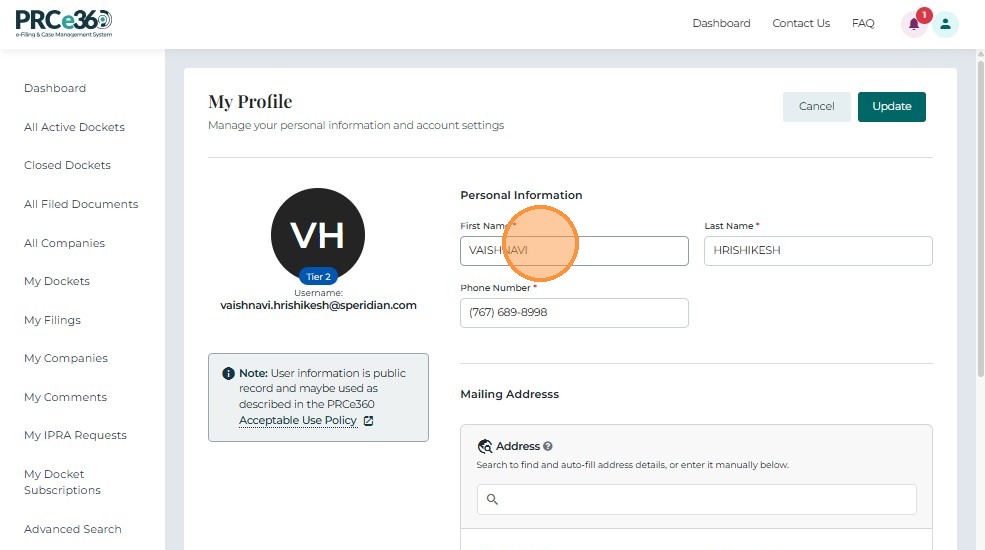 In this Docket, there is no saved address, so they can just edit the address fields.
Edit or update the necessary information fields such as:
- First Name / Last Name
- Email Address
- Phone Number
- Mailing Address
- Other available contact or identification details
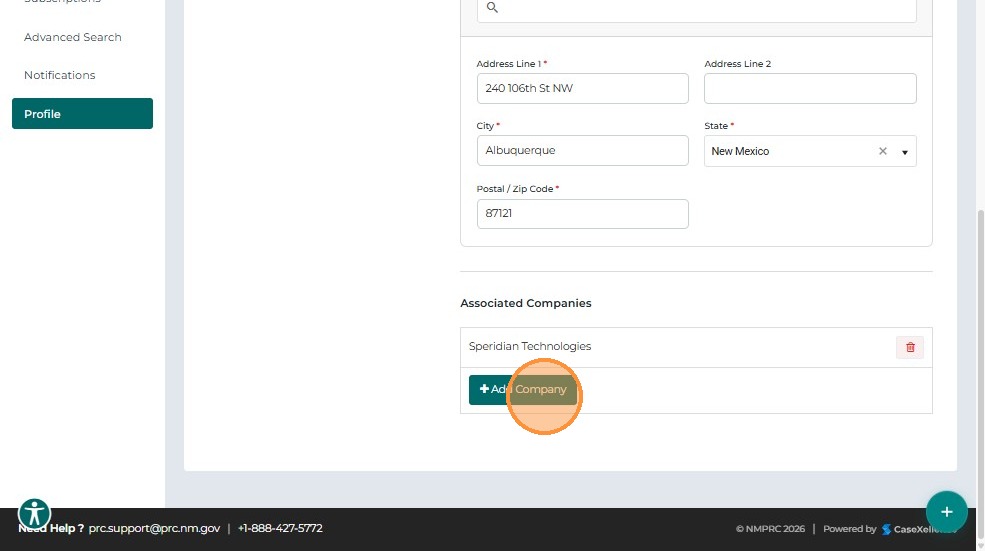
Click on Add Company to add associated companies to the profile. This is necessary when filing a new docket
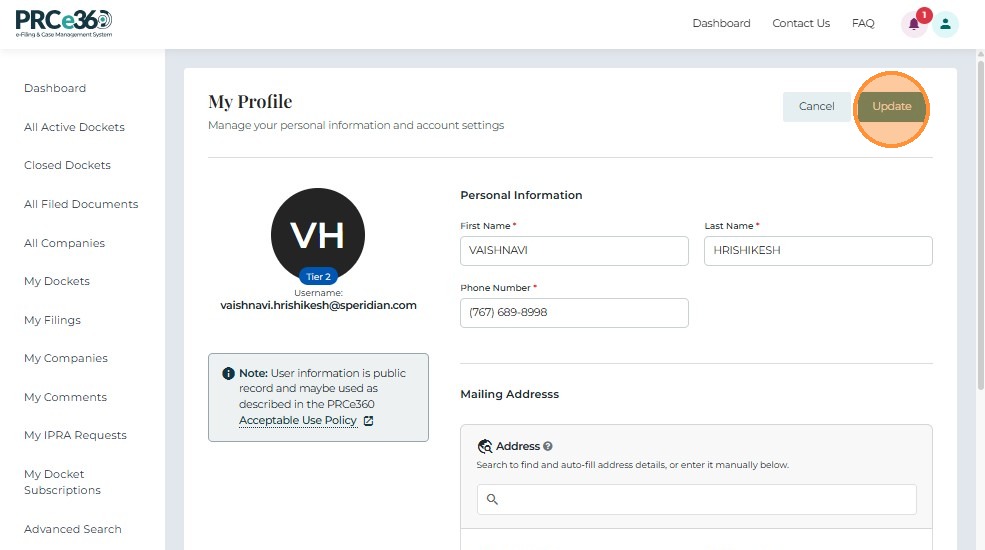
After making the required updates, click the Update button to save the changes.
A success message confirms that your profile has been successfully updated.
The changes will immediately reflect on your Profile page.